


Smart HPrinter Service :ePrint
4.4647.00 Reviews
App Specs
- Version
- 2.8.0
- Updated On
- License
- Free
- Downloads
- 1,000,000+
- Developer
- Pixster Studio
- Categories
- Business
- Platform
- Android
Screenshots
 Analysis by AppCompare
I think of printing as the last step in a small workflow, not a task that should take over my day. A file needs to be easy to find, the printer needs to be reachable, and the final page should be worth the paper and ink. Smart HPrinter Service: ePrint is aimed at that practical gap between having a document on a phone and getting a physical copy. It is a business app from Pixster Studio, and its appeal is clearest when printing is occasional but still part of work, study, or home administration.
Start with a workflow, not a printer menu
Before using a phone-printing app, I’d first ask what usually slows me down. If the problem is that a useful file is buried among downloads, photos, and email attachments, no printer connection can fix the whole process. I get better results by keeping the document I need in a predictable place, checking that it is the final version, and only then opening a printing tool. That simple habit matters here because the app is most useful as a bridge from a ready-to-print file to a compatible printer, rather than as a substitute for organizing documents.
The app is free to install and is rated for Everyone. It has an average rating of 4.4 from around 52,000 ratings, with more than a million installs. Those figures suggest it has found an audience, but I’d still treat printer compatibility as the deciding factor for an individual household or office. It is currently version 2.7.7 and supports devices running Android 8.0 or later. In-app purchases range from $4.99 to $69.99 per item, so I would check what is offered in the app before assuming every option is included at no cost.
Making phone printing part of a dependable routine
I find a phone-printing routine works best when I decide what needs to be printed before opening the app: that keeps a quick job from turning into a hunt through old files. In this section, I’ll focus on the small checks that make the process more dependable, then move on to how I’d keep documents easy to locate and ready for the next print.
Keep capture and organization simple
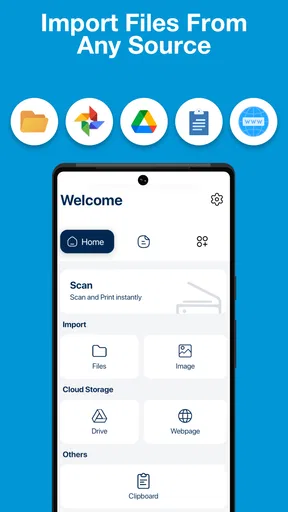
The most useful preparation is choosing a sensible source for each file. For example, I would keep a receipt in a finance folder, a travel document in a trip folder, and a work handout alongside the related project. Then, when a printer is available, I can find the right copy without searching through several apps. The app’s document selection is meant to let you choose files from your phone or cloud storage, which can reduce the back-and-forth of moving a file to a computer first.
A small check before sending a job can prevent waste: open the document, confirm its orientation, and look at whether the page is likely to be clipped or mostly blank. This is especially helpful with phone-generated files, where a page may look fine on a narrow screen but print with an unexpected layout. I would also avoid printing a draft just to check a sentence if the change can be reviewed onscreen. The practical benefit is less about a clever setting and more about making each print intentional.
Build a repeatable printing routine
For recurring tasks, I’d use the same sequence each time: find the final file, select the printer, check paper size and orientation, choose the number of copies, and then send the job. That routine is simple enough to remember, yet it catches the common reasons a document comes out wrong. If I regularly print meeting notes, for instance, I can decide in advance whether a single-sided copy is easier to mark up or whether double-sided printing makes more sense for a longer document.
Worth Reading Before You Choose

EA SPORTS FC Mobile 26 Is a Bigger Football Game, but It Takes Time

Flipboard Shows What News Apps Must Do Beyond the Feed

Switching to Android Auto Means Rethinking Your Driving Routine

Google Calendar Makes a Crowded Week Easier to Manage

Ludo King Makes the Most of the Minutes Between Plans

Baby Panda World Brings Quick Play to Modern Phones, but Its Game Library Feels Busy
The controls described for paper size, orientation, copy count, color, and double-sided output are useful because they connect the phone workflow to real decisions about cost and readability. For a short form, black and white may be perfectly adequate; for a chart or image where color carries meaning, saving ink could make the result harder to use. I would treat these options as a way to choose deliberately, not as a reason to assume every job should use the same settings.
Where it fits among the usual alternatives
Compared with printing through a computer, a phone app can save a transfer step when the document is already on a mobile device. That is handy for a form received by email or a file stored in cloud storage. A printer’s own companion app may be a better choice if you rely on that manufacturer’s specific tools or need a workflow tailored to one device. Likewise, if your printer already works smoothly through the phone’s built-in printing options, adding another app may not improve anything.
The stated printer support includes HP, Canon, Epson, and Brother models, but a brand name alone is not a guarantee that every model or network arrangement will behave the same way. I’d check that the printer is actually available to the phone before relying on the app for something time-sensitive. The advertised idea of sending a job while away from home is appealing, but remote printing only helps when the printer and the surrounding setup are ready to receive it. For an urgent document, I would not wait until the last minute to discover a connection issue.
Small checks that prevent bigger hassles
One useful habit is to print a low-risk page first when trying a new printer connection or changing a setup. A short, non-sensitive document can show whether the printer is reachable and whether the selected paper and orientation are right, without wasting a larger batch. If the output is wrong, I’d change one setting at a time instead of repeating the whole job with several guesses. That makes it easier to tell whether the problem came from the file, the selected options, or the printer itself.
Another trade-off is convenience versus control. A phone is excellent for choosing a file and making a quick print, but detailed layout work is usually easier on a larger screen in a full document editor. If a page must meet a strict format, I would inspect the document on a computer first and use the app for the final handoff. For ordinary paperwork, that extra step is unnecessary; for a carefully formatted report, it can save a reprint.
It is also worth thinking about where a document will land. Printing a work file on a shared household printer may be convenient, but it may not suit material that should stay within a controlled workplace. I wouldn’t treat a printing app as a privacy system by itself; I’d choose a trusted printer and network, and avoid sending sensitive files to a device other people can access. That’s a sensible boundary for any mobile printing workflow.
A realistic day-to-day use
Picture a morning when I need a signed form for an appointment and a few pages of notes for a meeting. I can locate the form on my phone, check that it is the current version, and send it to a nearby compatible printer. Then I can print the notes separately, choosing a setting that suits pages I may want to mark up. This is a modest convenience, but it removes the need to forward both files to a computer just to get paper copies.
The same approach works for a student printing a reading sheet at home, a freelancer preparing a simple client handout, or a family member who needs a copy of a travel document. It is less compelling for someone who rarely prints, has no compatible printer, or needs extensive page editing before every job. In those cases, the occasional computer-based print or the printer maker’s own software may be simpler than maintaining another app in the routine.
What to expect when something goes wrong
Phone printing depends on more than the app: the printer needs paper and ink, the selected device must be the right one, and the file itself has to be suitable for printing. If a job does not appear, I’d start with those basics rather than immediately assuming the document is lost. Check that the printer is on and reachable, confirm the phone is selecting the intended printer, and retry only after reviewing the settings. A stuck or incomplete job can be more frustrating if several copies are sent in quick succession.
There is also a practical limitation to broad compatibility claims: support for several major printer brands does not remove the need to check the exact model and connection in your own setup. I would test the app with a harmless document before depending on it for travel, a deadline, or a meeting. If a particular printer consistently refuses to connect, its manufacturer’s own app or a computer may be the more dependable route for that device.
What the app feels like to use
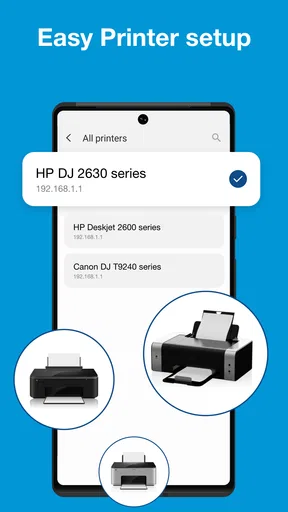
First off, let me say that setting up the app was a breeze. You know how some apps make you jump through hoops just to do the simplest task? Not this one. The Smart HPrinter Service: ePrint is designed to be straightforward. Once you download it, the app guides you through a quick setup process, connecting seamlessly to your printer via Wi-Fi. I didn’t have to fiddle with any complicated settings, which was a major win in my book.
User-Friendly Interface
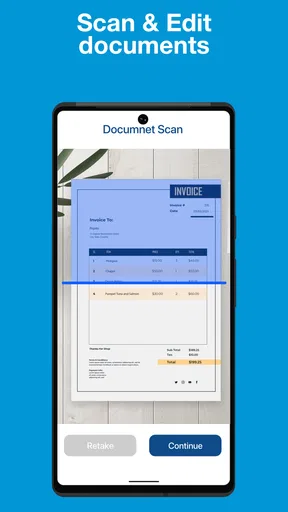
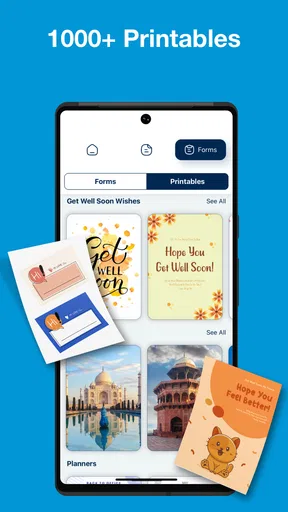
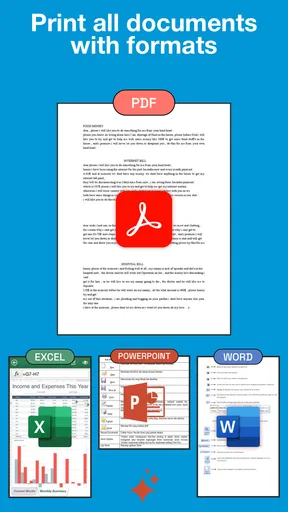
The interface is clean and intuitive. From the main screen, you’ve got everything you need at your fingertips. There’s a distinct lack of clutter, which I appreciate. It allows you to select documents from your phone or cloud storage and print them in just a few taps. Plus, the app supports a range of file types, so whether you're printing photos, PDFs, or Word documents, it’s got you covered.
Mobile Printing on the Go
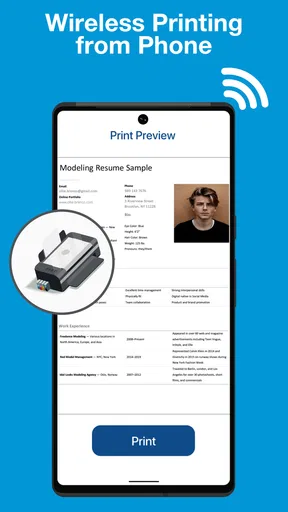
One of my favorite features is the mobile printing capability. Imagine this: you’re on a train, and you suddenly remember you need to print that last-minute report before the meeting. No stress! With this app, you can send your documents to your home or office printer from anywhere. It’s freedom in your pocket, and honestly, it feels like a superpower.
Efficient and Reliable
I've tried printing a variety of documents, and each time, the output was spot-on. The colors were vibrant, and the text was crisp. I didn’t encounter any of those annoying paper jams or misprints that some printers are notorious for. It’s clear that the app is optimized to work smoothly with compatible printers, ensuring a hassle-free experience.
Customizable Options
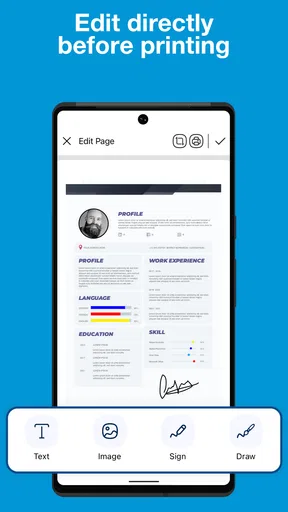
Customization is another area where this app shines. You have control over print settings like paper size, orientation, and the number of copies. If you’re particular about your print quality, you’ll appreciate these options. And for those of us who care about the environment, there are options to print double-sided or in black and white to save on ink and paper.
Security and Privacy
In today’s digital age, security is paramount. The app doesn’t disappoint here either. It uses secure protocols to protect your data, ensuring that your documents are printed safely without any leaks. It’s peace of mind knowing that your sensitive information remains private.
Compatibility and Support
The app is compatible with a wide range of printers, which is a major plus. Whether you’re using an older model or the latest printer, you’re likely covered. Plus, the support team is responsive. I had a quick question about a feature, and they got back to me promptly with a helpful response.
All in all, the Smart HPrinter Service: ePrint app is a solid choice if you’re looking to simplify your printing needs. It’s easy to use, reliable, and packed with features that cater to both personal and professional use. So, if you’re tired of the usual printing woes, give this app a try. It just might change the way you think about printing!
Pros
- Seamless integration with most printers.
- User-friendly interface for easy navigation.
- Supports multiple file formats for printing.
- Remote printing from anywhere with internet.
- Fast setup and minimal configuration needed.
Cons
- Limited advanced editing features.
- Requires stable internet for optimal use.
- Occasional delays in print jobs.
- Not compatible with older printer models.
- Subscription fees for premium features.
FAQs for Smart HPrinter Service :ePrint
What is Smart HPrinter Service: ePrint?
Smart HPrinter Service: ePrint is an app designed to simplify printing tasks by allowing users to print documents and photos directly from their smartphones or tablets. It's compatible with a wide range of printers and offers seamless integration with cloud storage services like Google Drive and Dropbox.
How do I set up Smart HPrinter Service: ePrint on my device?
To set up Smart HPrinter Service: ePrint, download the app from the Google Play Store or Apple App Store. Once installed, open the app and follow the on-screen instructions to connect your device to a compatible printer via Wi-Fi or Bluetooth. Ensure your printer and device are on the same network.
Is Smart HPrinter Service: ePrint free to use?
Smart HPrinter Service: ePrint offers a free version with essential features. However, for advanced functionalities such as enhanced cloud integration and priority support, there may be in-app purchases or subscription options available. Check the app's store page for detailed pricing information.
What file types can I print using Smart HPrinter Service: ePrint?
The app supports a wide range of file types, including PDFs, Word documents, Excel spreadsheets, PowerPoint presentations, and image files like JPEG and PNG. This versatility ensures that you can print almost any document or photo you need directly from your mobile device.
Are there any security concerns with using Smart HPrinter Service: ePrint?
The app prioritizes user security by employing encryption protocols to protect data during transmission. It does not store any of your documents on its servers, and all data is sent directly to your printer. Always ensure you download the app from official app stores to avoid security risks.


